
How to change the times on your calendar
The times parents see on your booking calendar come from two settings: your time zone and your availability. Set both before you share your calendar, for example for your sleep assessment calls, consultation calls and ask me anything calls.
1. Set your time zone
Your time zone decides the times of every booking, reminder email and confirmation. A wrong time zone means parents book at the wrong time, and you miss calls.
- Click your profile picture, then Settings.
- Settings opens on your Profile. Scroll down to Time settings.
- Choose your Timezone. You can also set your Date format and Time format, for example 24-hour or AM/PM.
- Click Save.
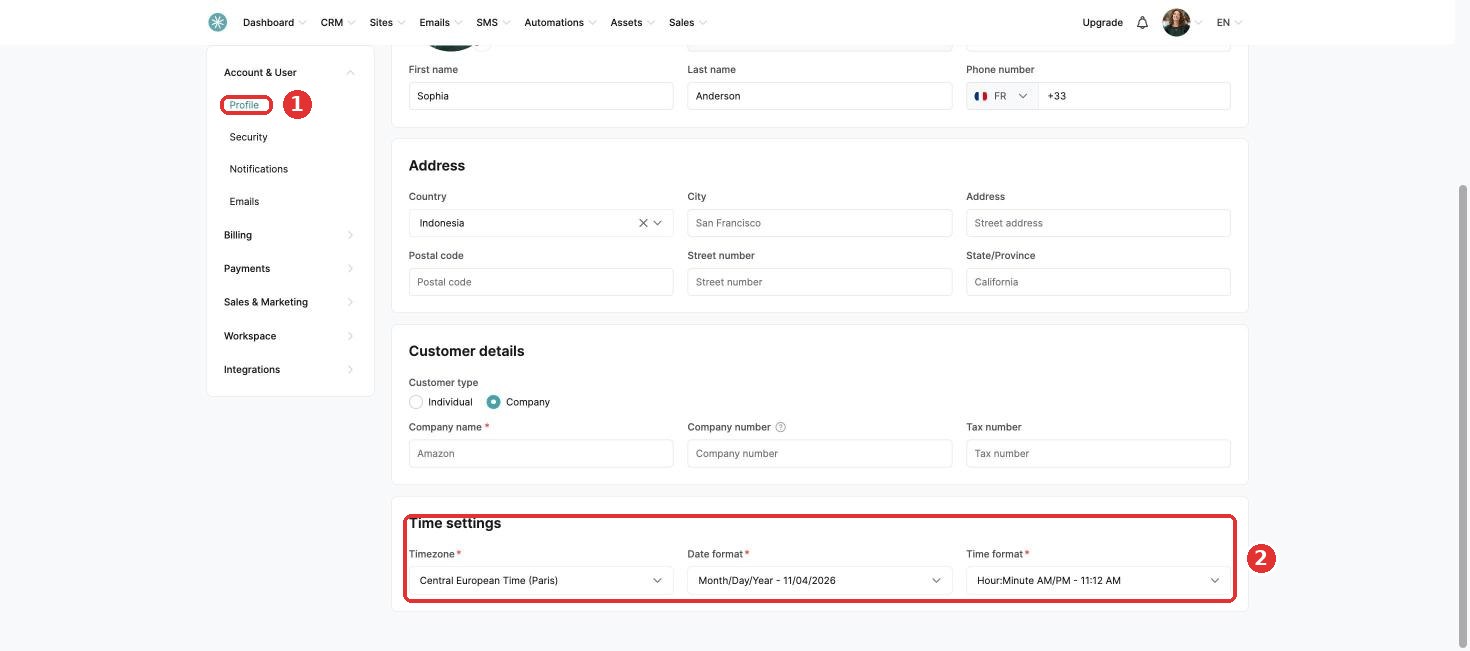
Moving or travelling for a longer time? Update your time zone, so your calendar follows you.
2. Change your available times
- In the menu bar, click CRM, then Calendar.
- Open the Availability tab.
- Change your time slots for each day, or add date-specific times.
- Click Save.
See How to set your calendar events availability for all the options, such as time off and extra dates.
3. Check one event
Open one of your events and check the times in the preview. Times look off by a few hours? Your time zone is not set right yet.
Parents abroad? Turn on Time zone display in the advanced settings of your event, so parents see the times in their own time zone. See How to set up your calendar events.
Did this answer your question?