
How to create a tag
Tags
Tags are labels you give your contacts. They show where someone came from or where they are in your business, for example Lead, Sleep assessment call booked, Client or Course student.
You need tags to send newsletters to the right people. Without them, you cannot segment your list. For example, give the tag Newborn course client to every parent who buys your newborn course, then send only them the emails about it.
Create a tag
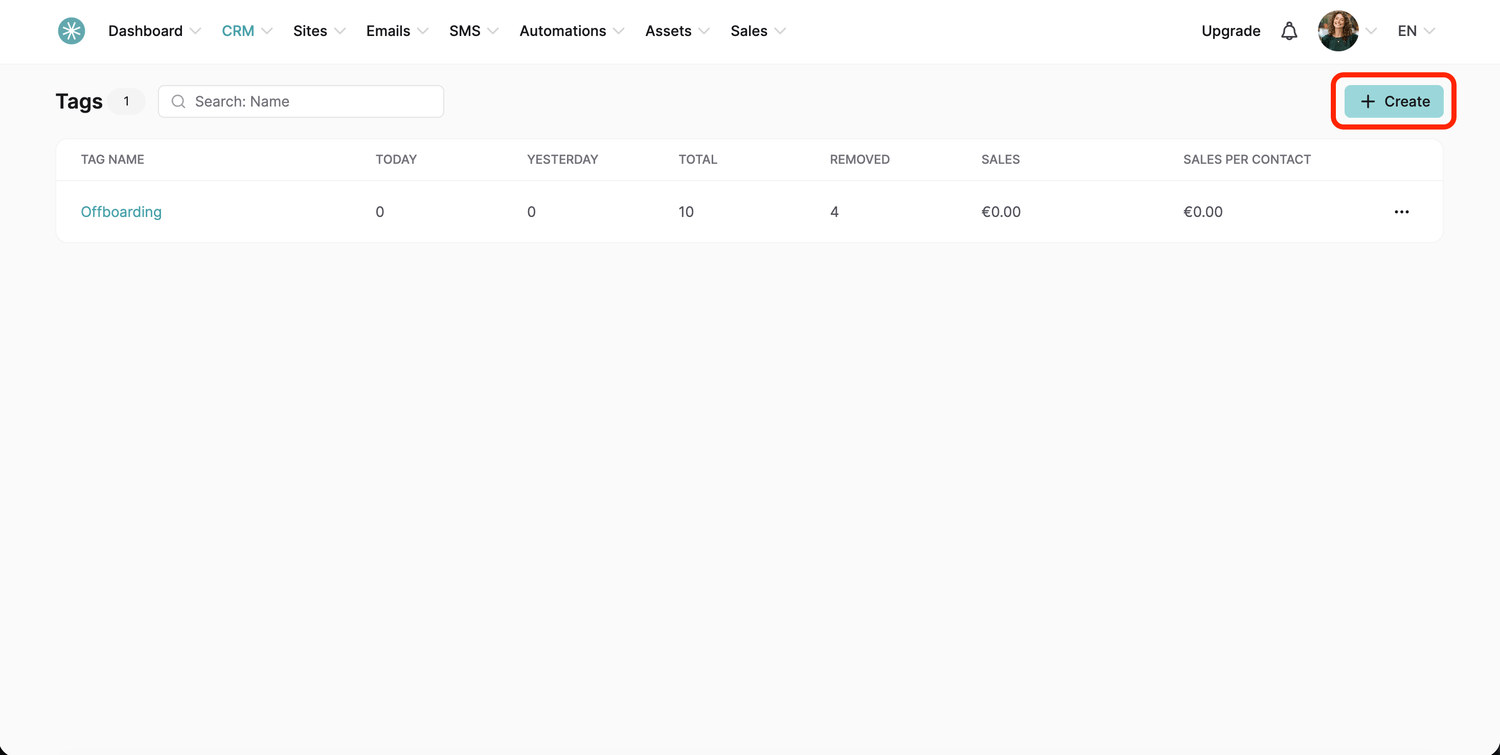
- In the CRM tab, click Tags.
- Click Create.
- Type a name in the Tag name field and click Save.
Create a tag inside an automation rule
You can also type a new tag name straight into an automation rule. SleepPRO™ creates the tag for you, so you can build your automation without stopping to make tags first.
Your tag statistics
The Tags dashboard shows these numbers for each tag:
- Today and Yesterday: how many contacts got the tag in each period.
- Total: how many contacts have ever received the tag.
- Removed: how many contacts had the tag taken off.
- Sales and Sales per contact: the revenue from contacts with this tag.
Total is not the number of contacts with the tag right now. It counts everyone who ever received it, including people whose tag was removed later. For example, if Total shows 2 and Removed shows 1, one contact has the tag today. Total minus Removed gives you the current number.
Sales figures include taxes, so they match the revenue on your contacts and transactions pages.
Did this answer your question?