
How to add custom HTML to your pages
With HTML code you can add sections to your pages which the editor does not offer, such as a custom testimonial wall, a pricing table or a confetti effect on your thank you page. You can write the code with AI, such as Claude, or paste code you already have.
Forms, order forms, booking calendars and payment buttons always stay SleepPRO™ elements. Only these add contacts to your list, start your automations and take payments. Place your HTML sections above or below them.
1. Add the HTML block to your account
Use the SleepPRO™ HTML block for all your code, not the Raw HTML element from the Elements menu.
- Log in to SleepPRO™.
- Open this link to add the HTML block.
- A message confirms: The block has been added. You only need to do this once.
2. Add the block to your page
- Open your website, sales page or other page and click Edit page.
- Click Blocks at the top of the left panel, then My blocks.
- Drag HTML Block [SleepPRO™ + AI] to the spot on your page where your section goes.
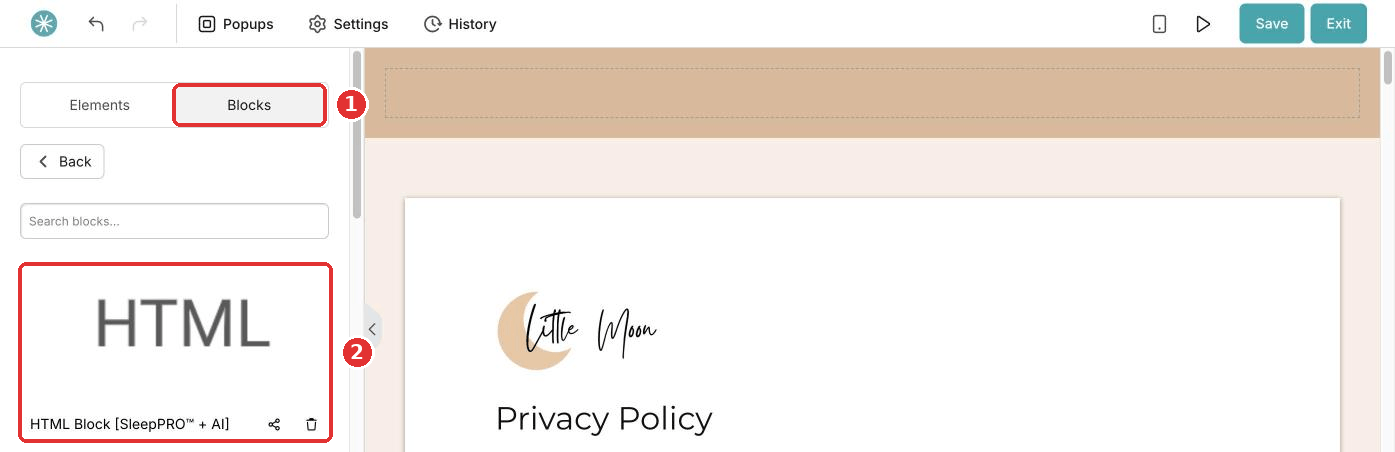
- Click the block, then Edit code.
- Paste your code and click Save.
- Save the page.
Your HTML does not show in Preview mode. Open your live page to see it, on your computer and on your phone.
3. Create your code with AI
We recommend Claude for this. It works well with self-contained code, and you can start on the free plan. Your prompt has two parts.
Part 1 is your request. Copy it and fill in the brackets:
What I need: [describe the section, for example a welcome section for my homepage with a headline, a short text, my photo and a button to book a sleep assessment call]

My content: [paste your headline, text and button text]

My brand: colors [your color codes, for example #F4E9DD and #2E4A3F], fonts [your font names], style [for example warm, calm and minimal]

Inspiration: [optional, describe a style you like or add a screenshot]
Part 2 is the technical requirements. Copy them below your request, unchanged. They make sure the code works on your page:
Technical requirements. My platform only accepts self-contained HTML blocks, so the code must follow these rules exactly:

1. One single block of code. No DOCTYPE, no html, head or body tags. The code gets pasted into an existing page, not uploaded as a file.
2. All styling lives inside the block, in one style tag at the top. No external stylesheets, no linked CSS files, no font files to upload separately. Use web-safe fonts or the closest match to the fonts I want.
3. Give every class name a unique prefix, so the code never clashes with the styling of other sections on my page or the platform itself. Never style bare tags like body, h1 or p directly, and no global resets.
4. Use h2 and h3 for headings, never h1. The page already has its own main heading.
5. Fully responsive, mobile-first. No fixed pixel widths on containers and no viewport units like 100vw, because the block sits inside the platform's own page container, possibly between other sections.
6. No working forms. The block can't send form data anywhere. If a form is needed, replace it with a button and use the placeholder [ADD LINK] so I can connect it myself, and tell me when you do this so I know what changed.
7. For any image, use a clearly marked placeholder like [UPLOAD: image name] and list what I need to upload, so I can swap in my own image links. Never link to images from other websites.
8. No JavaScript loaded from outside the block. If a script is needed, keep it simple and fully inside the block.
9. Descriptive alt text on every image based on what it shows.
10. No emojis.
11. Never mention any website builder, page builder or platform name anywhere: not in the code, not in comments, not in visible text.
12. When I ask for changes, change only what I ask, keep everything else the same, and always return the full updated block.
Tips for a good result:
- Ask for one section at a time.
- Give Claude your real text, brand colours and fonts.
- Add a screenshot of a design you like and say what you like about it.
- Read Claude's notes under the code. Replace every [UPLOAD: image name] with your own image link and every [ADD LINK] with the link to your SleepPRO™ page.
4. Use your own images
- In the page editor, click any text and select a word.
- Click the link icon, then the upload icon next to the Link field.
- Upload your image, or choose it in Your files, and click Insert.
- Copy the link in the Link field, then click Cancel so the word stays as it was.
- Paste the link in your code, or give it to Claude to place for you.
5. Make changes later
- Open the Claude chat where you made the code. Lost it? Copy the code from the block (Edit code) into a new chat.
- Describe the change, and add: Change only this. Keep everything else exactly the same and return the full block.
- Click the block on your page, then Edit code. Select all the old code (Ctrl+A, or Cmd+A on a Mac), paste the new code and click Save. Save the page.
- Check the live page on your phone. Something off? Send Claude a screenshot and describe what to fix.
Keep a copy of your latest working code in a document. If a change goes wrong, paste the old version back.
Never paste client names, sleep logs or health details into any AI tool.
Did this answer your question?